This page describes one consent flow — the flow identified as Path 1 in our A2P campaign registration and in the umbrella SMS Opt-In Policy: a business owner who uses FrontOffice opts in to operational alerts about their own account. This page documents Path 1 only. This is explicit, self-service consent — the owner types their own mobile number into a clearly labeled form, next to a written disclosure, in an application they are signed in to.
How the owner consents, step by step
The owner signs in to their account
The owner enters their number and checks the alerts box
“Text me operational alerts about my business at this number — missed calls, customer replies, bookings, reviews, and account updates. Msg freq varies, msg & data rates may apply. Reply HELP for help, STOP to opt out. See our SMS Opt-In Policy and Privacy Policy.”
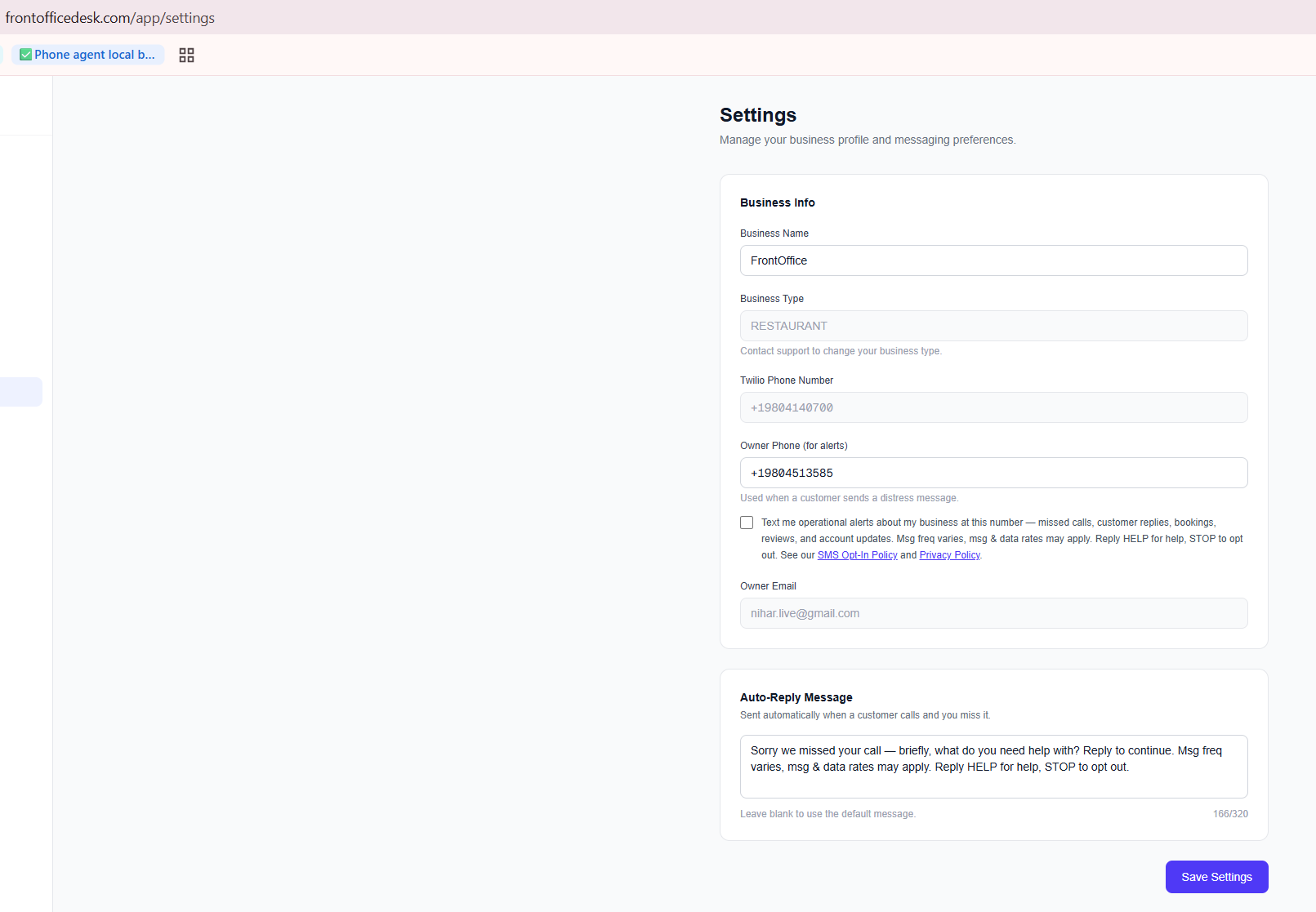
The opt-in form as it appears in account settings — the alerts checkbox is unchecked by default.
Alerts are sent only about the owner’s own account
Opt-out at any time
Message frequency and rates
Message frequency varies with the owner’s own business activity. Message and data rates may apply, depending on the owner’s mobile carrier plan. FrontOffice does not charge for alert messages.
Opt-out and help
Reply STOP to any alert to cancel all alerts immediately — one confirmation is sent, then nothing more. Reply HELP for support. STOP and HELP are handled before any other processing, on every message.
Contact
FrontOffice · Charlotte, NC · support@frontofficedesk.com